
Uptodate maps of the trail’s obstructions help prioritize maintenance crews and improve their efficiency. Such a map also helps hikers and backpackers with their planning and adventure. Anyone who is hiking on the trail can help by using a couple of apps and providing feedback.
To supplement the best representation of the “permanent” features of the TBTL on the Avenza Maps, I’ve created a custom Gaia GPS map. It is a work in progress and I would love your help to (1) give me current survey data by recording your hikes on the TBTL using the “ramblr” app, taking photos and writing notes within the app about any obstacles and (2) giving feedback on my custom GaiaGPS map.
Surveying Obstacles on the Trail
It would be very helpful if you could record trail hikes using the “ramblr” app, taking photos of obstacles in the app, adding notes, and measuring the diameter of fallen trees. The location and size of fallen trees determine the maintenance need.
For example, this is my ramblr report from a short section of trail around mile 18.5, when I was recording features as well as doing some maintenance: https://www.ramblr.com/web/mymap/trip/1267401/8165010
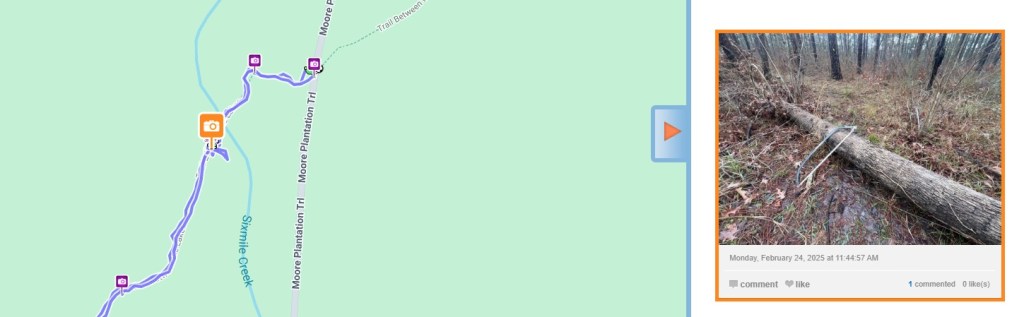
To capture a useful survey from your hike:
- Install the “ramblr” app on your phone and create an account when at home with good connection. You can do a test survey by walking along your street.
- At the start of your trip, start recording a track by pressing the red button.
- When you see an obstacle, take a photo from within the app (the camera icon top left) and write comments about the obstacle (notes icon at the top, third from the left). Include the diameter of any limbs across the trail. It’s great if you move what you can!
- Continue capturing your hike as you wish, including any obstacles.
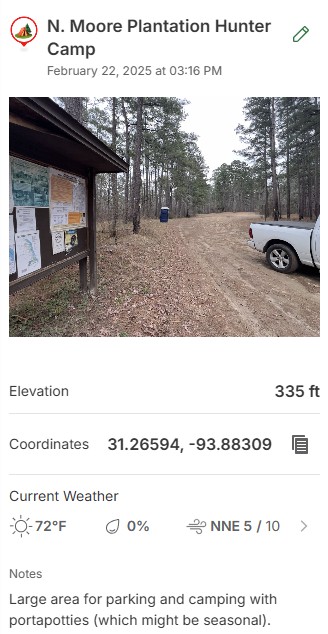
- Include a picture of where you parked so we can show others the parking area. Write a note estimating how many cars could park there, and any other comments such as the road condition. Try to avoid including your vehicle’s license plate in the photo!
- When you finish the hike, slide the bar to pause the recording, and then press the square button to stop it. Then, select “Upload now.” Then, enter a meaningful title and select other options. Set the “Visibility Setting” as “Secret”, which means other people will only be able to see this if they have the URL.
- When the upload has finished, select “Me” then “View My Archive.” This shows all of your recordings. Select the recording you have just done, then select the “share” button top right, and send it to me. There is a similar workflow on a computer if you need to do this later from home.
Gaia Map Feedback
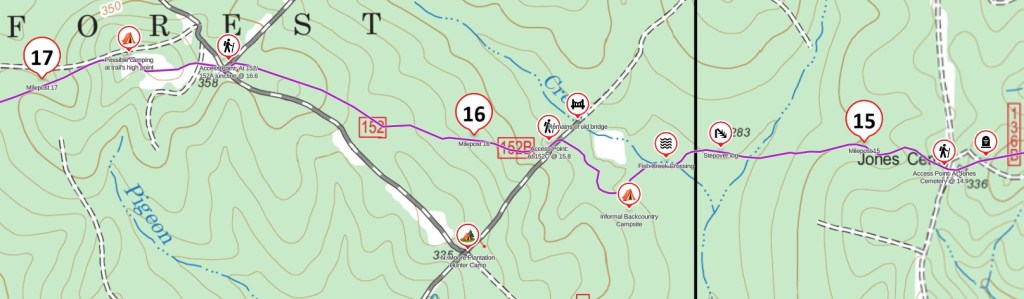
Please use the Gaia GPS map using the link below and provide feedback around the following questions. It’s better if you have installed the Gaia GPS map app, though it can work in a browser.
- Did you use the Gaia GPS map app on your phone, the browser on your phone, or the browser on your home computer? Is your phone an iPhone or Android?
- Do you use the free or premium version of Gaia?
- What section of the trail did you hike with this map, or did you just check it out at home?
- Using the link below, were you able to see the TBTL route and associated icons?
- When clicking on an icon on the map, were you able to see a picture of that site and additional information. If you could not see a picture, which icon was it, at about what mile marker?
- If you used the map to hike with, did it help and was it easy to use?
- If you used the map on trail, did you download a saved copy to your phone to work off-grid? If not, did you have connectivity issues. If you did use a saved copy, did that work well?
- What improvements would you suggest?
https://www.gaiagps.com/public/lc0Q4eiwBWLurlUll1GxLNhR/
Thanks for your feedback and contribution to the Trail Between The Lakes!
You might also be interested in my guide to the TBTL and the blog of my thru-hike.
 The Adventures of the Cajunlimeys
You must be logged in to post a comment.